Freelance Contract Checklist: Scope, Payment, Revisions, and IP
Use this freelance contract checklist to clarify scope, revisions, payment, ownership, confidentiality, delays, and project cancellation.

Clockify and My Hours are the strongest free starting points for most solo freelancers. Toggl Track suits people who want straightforward tracking and better billable-rate reports on a paid plan. Harvest is the clearest option when tracked time needs to become an invoice. Bonsai makes sense when time tracking is one part of a larger proposal, contract, project, and billing workflow.
This guide compares published features and prices rather than pretending every app was personally tested. Prices were checked on August 1, 2026. Plans change, so confirm the current price before moving your client records.
| Tool | Best for | Free plan | Useful paid starting point |
|---|---|---|---|
| Clockify | Free tracking across projects and devices | Up to five users with unlimited tracking | Basic: $3.99/user/month annually or $4.99 monthly |
| My Hours | Project budgets and client reports | Up to five active users | Basic: $4/user/month annually or $5 monthly |
| Toggl Track | Timers, calendar tracking, and billable reporting | Available for a limited number of users | Starter: $9/user/month annually or $12 monthly |
| Harvest | Turning tracked time into invoices | One seat and two projects | Teams: $9/seat/month annually or $11 monthly |
| Bonsai | Time inside a complete freelance workflow | Limited account; time and projects remain available | Basic: $9/user/month annually or $15 monthly |
A freelancer doesn't need a timer just to collect hours. You need evidence that answers a practical question: how much time did this client use, what work was billable, and can the total move into an invoice without rebuilding it by hand?
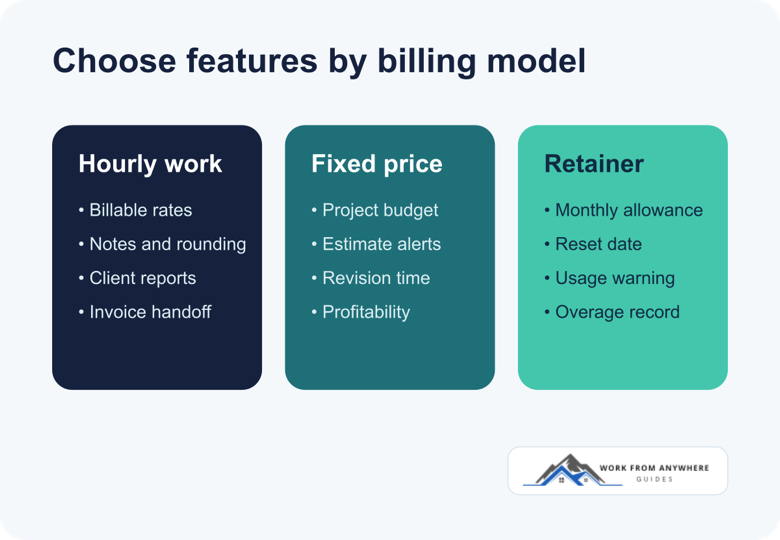
Your pricing model decides which features matter:
If your week is already messy, fix the calendar before measuring every minute. The time-management system for remote workers explains how to use focus blocks, communication batches, breaks, and a shutdown routine.
Clockify's free plan allows up to five users with unlimited time tracking. It includes a timer, timesheets, calendar view, desktop and mobile apps, idle detection, an automatic tracker, and reports. The Basic plan is $3.99 per seat each month when billed annually or $4.99 when billed monthly. It adds items such as time estimates, custom exports, project templates, billable rates, and bulk editing.
The free plan is enough when you mainly need to separate hours by client and project. Paid tiers become relevant when you need scheduling, project budgets, profitability, approvals, or tighter team controls.
Some higher plans include screenshots, GPS, and other workforce-monitoring controls. A solo freelancer rarely needs them. Don't turn on invasive tracking just because the feature exists, and never monitor a contractor without clear agreement.
My Hours offers a free plan for up to five active users. Its Basic plan costs $4 per user each month when billed annually or $5 when billed monthly. The published feature list includes unlimited projects and clients, task-level tracking, basic billable rates, and detailed reports. Pro costs $8 annually or $9 monthly per user and adds budgets, more detailed billing controls, approvals, and audit features.
This is a sensible fit when your main concern is keeping a project inside its quoted hours. For example, a 40-hour website project can be split into design, development, meetings, revisions, and launch. A budget warning is more useful than discovering after delivery that revisions consumed half the profit.
Decide whether you actually need Pro. A solo freelancer who only tracks hours and sends a monthly report may be fine on Free or Basic.
Toggl Track has a free plan for a limited number of users. Its Starter plan costs $9 per user each month when billed annually or $12 when billed monthly. Starter adds billable rates, project estimates and alerts, revenue reports, and project tasks. Toggl also publishes web, desktop, mobile, browser-extension, and calendar tracking options.
The free plan works for basic personal tracking. The reason to pay is not a prettier timer. It is the ability to connect time with revenue, estimates, and project progress.
Paid plans charge per license. Check for unused or vacant licenses if you add collaborators, because account structure can affect the bill.
Harvest's free plan is designed for one freelancer and includes one seat, two projects, time tracking, invoicing, expense tracking, and Mac and iOS apps. The Teams plan starts at $9 per seat each month when billed annually or $11 monthly. It adds team reporting and integrations with products including Stripe, QuickBooks Online, Xero, and Deel.
The two-project limit makes Free unsuitable if you juggle many active clients. It is still useful for testing the full path from time entry to invoice. If that handoff saves an hour of manual work every month, the paid plan may be easier to justify.
The free plan's two-project limit is restrictive. Also confirm that the invoice payment method and payout work in your country. The guide to invoicing software for freelancers explains why payment availability matters as much as invoice creation.
Bonsai's Basic plan costs $9 per user each month when billed annually or $15 when billed monthly. It includes time tracking, task management, unlimited projects, CRM records, and mobile apps. Invoices, payments, proposals, and contracts require the Essentials plan at $19 annually or $25 monthly per user.
The value comes from keeping the client record connected from lead to project. That can be useful if you currently copy the same details between a proposal tool, task manager, timer, and invoice app. It is unnecessary if you only need to record hours.
The free limited account can't create or send new invoices, proposals, or contracts. Compare the normal subscription cost, not just the seven-day trial.
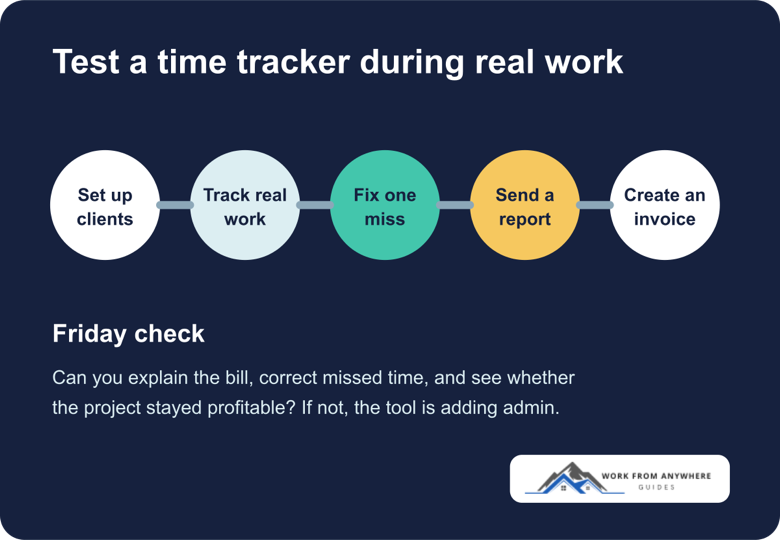
Feature tables won't tell you whether you will remember to use a timer. Test a candidate tool during a normal workweek with at least two clients and one block of non-billable work.
Once you have a realistic hour total, put it into the freelance project quote and take-home calculator. Add your target rate, revision buffer, project costs, platform fee, and payment charges. The result helps you see whether the quote still covers the work after deductions instead of treating every tracked hour as profit.
A tracker that you abandon after three days has no value, even if it has more features. The right tool should make your invoices easier to defend and your project estimates less optimistic.
Keep personal browsing, passwords, private client files, and unrelated work out of captured screenshots or activity logs. If a client asks for monitoring, agree in writing on what is collected, who can see it, how long it is stored, and whether the arrangement is required by the platform or contract.
Clients usually need a clear record of work, not a surveillance feed. A short note such as “homepage responsive fixes and checkout testing” is more useful than thousands of mouse movements.
Choose one tool and run it through a normal workweek. If you can correct missed time, explain the bill to a client, and see whether a fixed-price project stayed profitable, it is doing its job. If you stop using it by Wednesday, try a simpler option.
Use this freelance contract checklist to clarify scope, revisions, payment, ownership, confidentiality, delays, and project cancellation.
Compare freelance payment methods by country support, client convenience, total fees, currency conversion, withdrawal, and payment risk.
Leave a Reply
Comments